All Samsung users need to know the following when using their phone while driving
Executive Briefing
Synthesized and verified with gemini-2.0-flash-thinking-exp
“**A few steps can help a lot.** Many smart device users still maintain the habit of manually adjust”
Key Takeaways
- 1.**A few steps can help a lot.** Many smart device users still maintain the habit of manually adjusting each setting such as volume, display mode or connections every time they get in the car.
- 2.With tools built into Samsung's operating system, automating these repetitive tasks will free up time and make the moving process safer.
- 3.Setting up automatic scenarios applies to sleep or exercise habits, and brings noticeable effects to the daily driving experience.
A few steps can help a lot.
Many smart device users still maintain the habit of manually adjusting each setting such as volume, display mode or connections every time they get in the car. With tools built into Samsung's operating system, automating these repetitive tasks will free up time and make the moving process safer.
Setting up automatic scenarios applies to sleep or exercise habits, and brings noticeable effects to the daily driving experience.
Optimize work performance right from the driver's seat
One of the common problems every busy morning is forgetting to check personal schedules or children's school schedules. To fix this, integrating the calendar app directly into Driving Mode will help information be displayed immediately upon activation.
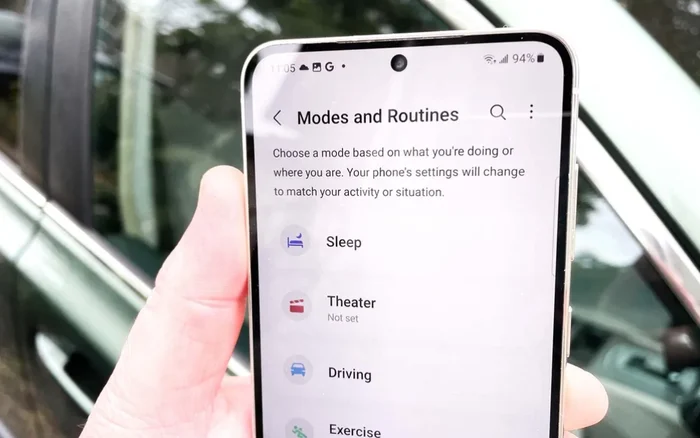
Users can install by going to Settings -> Modes and Habits -> Modes -> Driving -> Other actions -> Add actions -> Open the app or perform an action on the app -> Google Calendar.
When driving mode starts or when you just stop the car, the calendar application will automatically open on the screen. This feature helps users immediately cover the next tasks of the day, avoiding being distracted by entertainment applications or text messages after parking.
For the need to read the schedule by voice or get directions to the meeting point, users can combine the use of virtual assistants with direct commands to look up without manual operation.
Set up optimal display space for night trips
Driving at night often causes eye strain if the phone screen maintains high brightness, while adjusting each technical parameter before departure is time-consuming. An effective solution is to create a specialized scenario specifically for night travel conditions right in Driving Mode.
Parameters that need to be configured include: turning on Battery Saver, activating Eye Protection, switching to Dark Mode, and adjusting media volume to a moderate level. Settings are carried out following the path: Settings -> Modes and Procedures -> Modes -> Driving -> Other actions -> Add actions -> and add each corresponding customization.
When the scenario is activated, the screen will automatically switch to a warm tone and dark interface to help reduce visual stress. At the same time, lowering the multimedia volume ensures that navigation notifications from the map application are not drowned out by the music. The included battery saving mode also helps optimize capacity for the entire journey.
Control notifications to maintain absolute focus
Messages from chat applications or shopping notifications appear continuously, easily distracting the driver, especially on new routes. To handle this problem, setting up a task that automatically activates Do Not Disturb mode when connected to Android Auto is a necessary option.
Setting is done as follows: Settings -> Mode and Schedule -> Schedule -> + -> If -> Android Auto -> Then -> Notifications -> Do Not Disturb -> On.
In the advanced customization section of the system, users can flexibly choose features such as Show custom notifications or Read notifications out loud. This configuration allows you to filter out unnecessary distractions while still ensuring you don't miss important updates during your trip.
Automatic disconnection and power management at the end of the trip
While wireless Android Auto offers great convenience, maintaining a constant Wi-Fi and Bluetooth connection after leaving the vehicle consumes battery capacity unnecessarily. A few simple steps can completely clean up these connections.
In the trigger conditions section, select End driving. Next, in the action section, set Wi-Fi and Bluetooth to off.
With this setting, the phone will automatically turn off Wi-Fi and Bluetooth after the trip ends. Users do not need to perform manual operations after each trip. This is a simple way to manage connections on your phone and avoid maintaining connections that are no longer needed.
Additionally, users can create a separate routine to automatically turn on Wi-Fi and Bluetooth when starting to drive. Thanks to that, the phone is always ready to connect to Android Auto wirelessly when needed.